What has changed?
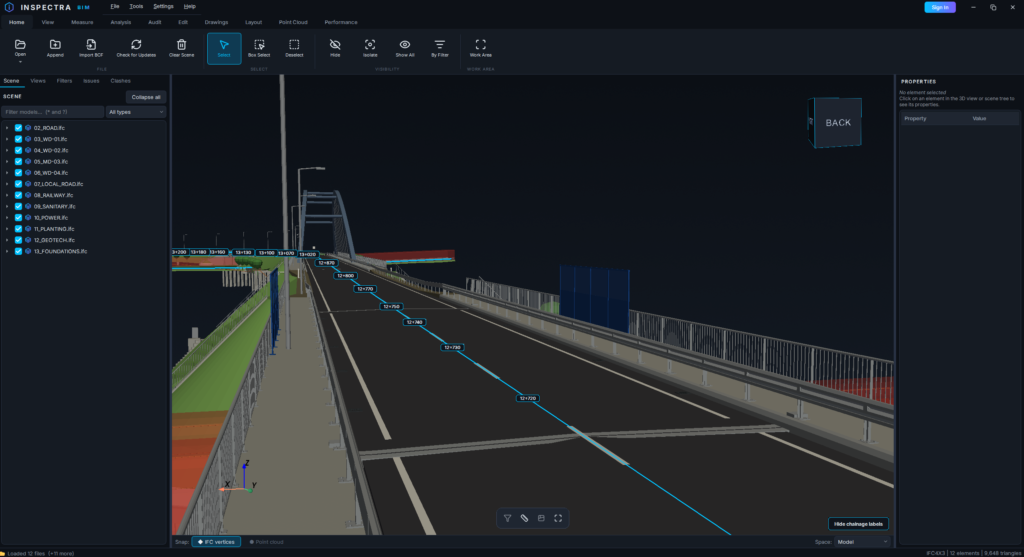
Inspectra BIM 1.2.0 is out. Most of it is clash detection: the window was rebuilt for Full HD screens, clashes can be grouped by hand or by rule, and they go straight to BCF without creating an issue first. The rest is a long list of things users pointed at — a floating measurement ball, a drawing with a line that should not be there, an installer that spoke only Polish.
Clash Detection, rebuilt for the screen you actually have
The Clash Detection window had grown a setting at a time until it no longer fit a Full HD monitor, and the one part that matters most — picking the models and classes to test — was squeezed into a small list. It is now three tabs: Selection, Test settings and Update & matching, with a one-line summary of the whole test underneath them. The selection lists take the full height of the window, long file names get an ellipsis instead of a horizontal scrollbar, and the window remembers its size.
Two smaller things in the same window: a test can now run on a single loaded model (the file is checked against itself), and the very first run no longer freezes the window while the calculation kernel compiles — the compile starts in the background the moment you open the clash tools, and the progress window says Preparing if it is still at it. Should the kernel ever fail on a machine, the test falls back to the reference engine instead of reporting zero clashes.
Clash groups
A test on a real federation returns hundreds of clashes that belong to a handful of situations — one duct through one slab, twenty times along the corridor. The clash panel now lets you group them: select clashes and Group, Rename, Ungroup, or act on a whole group at once (assign, tag, change status).
Auto group does it by rule: by element A or B, by location within a radius, by storey, by chainage along an alignment, by the pair of IFC classes, by the pair of files, by an attribute value or by clash depth. The rule is saved on the test, so when you rerun it after a model update, the new clashes fall into the existing groups by themselves. The dialog previews the grouping live before you apply it.
BCF straight from the clash tests
Export BCF now asks what you want to send: the scene’s issues, as before, or clashes picked directly from the tests — a tree of tests with checkboxes, no need to turn every clash into an issue first. Groups and tags travel as BCF labels, resolved clashes arrive as Closed, and each topic gets a snapshot of its pair. BCF 3.0 is written according to the official schema alongside 2.1, and import recognises either version on its own.
Measuring: the ball lands where you point
A user reported measurement balls hanging in the air next to an element, corners that would not snap and snapping that got worse on a large scene up close. We built a test rig for it — a real scene, thousands of hover-and-click samples at distances from 400 m down to 70 cm, each one judged against the geometry independently of the tool — and found four causes.
- The picker was too generous. A ray passing a few centimetres beside a face was accepted and reported a point on the ray rather than on the face. On a building that meant up to 3 cm off the mesh; on a kilometre-long road scene 60% of close-up samples were off. Faces are now picked exactly.
- Hidden corners could win. The nearest vertex on screen was chosen even when it sat behind the surface you were looking at — the bottom corner of a slab, the back corner of a wall. Candidates are now checked for visibility; glass does not hide what is behind it.
- Corners of the neighbouring element were unreachable. Snapping only considered the element under the cursor, so a beam end next to a slab needed the cursor exactly on the beam. Neighbours now join the candidate pool.
- The click could land elsewhere than the ball. A click now commits the point the ball is showing, the way point-cloud snapping already did.
On the test building, off-surface points went from 25 to 0, refused clicks from 10 to 0 and corner snaps went up by a third; on the road scene 281 off-surface points became 0 and hovering got twice as fast. Point-cloud snapping is untouched.
Drawings
- Seams between flush solids are gone. A wall modelled as two parallel solids, or a pier made of segments, drew a line where the pieces meet — each solid has a real 90° edge there, only their sum has no crease. A new Display Settings rule (on by default) recognises those seams and skips them. On the test building it removed 35% of the lines in sections and 17% in elevations.
- Visible lines end exactly at the silhouette. Where a line disappears behind a solid used to be found to within a metre; it is now bisected to 0.1 mm.
- Drawing Display Settings are organised in five tabs, and the window fits a laptop screen again.
- After you create a drawing, the scene stays on the model and the Space switcher pulses briefly to show where the new drawing opens.
- DXF export can write elements as blocks: one block per element, inserted on a layer named after the IFC class, the element name or a property you choose. Lines inside the block keep their layers, so office layer mapping still applies. Works with global coordinates and with Section Sets.
- Exporting a Top view with Global coordinates now really lands in the model’s global X/Y.
Work Area
Two things people asked for after 1.1.0: when you start a new Work Area the cursor now turns into a crosshair, so it is obvious the next click has to land on a face. And once a scene has at least one work area, a Work Area switcher appears in the bar under the 3D view, next to the Space switcher — pick an area or None to switch the crop off without opening the dialog. Available in Inspectra Free.
Smaller things
- Box Select reads the drag direction, CAD style: drag to the left to select everything the rectangle touches, to the right to select only elements entirely inside it. The frame is blue or green-dashed to show which.
- Standard Windows file dialogs replace the styled ones for opening and saving files.
- Measurement tools on the ribbon are mutually exclusive again — two tiles no longer look active at the same time.
- The single-letter VTK shortcuts in the 3D view are muted: pressing p no longer paints a red outline over the model, w/s no longer switch to wireframe, r no longer resets the camera.
- A full pass over every dialog: text no longer clips inside fields and combo boxes, windows fit a 1366×768 laptop screen, and Clash Report and BI Export are tabbed.
- Inspectra no longer disappears at sign-in on computers with Avast when it was started from the browser’s download bar.
Installer
The installer picks English on any Windows that is not Polish and lets you choose either language up front; its own texts exist in both languages now. Every library in the package is code-signed, not only the application itself — Windows 11’s Smart App Control had started blocking unsigned components on new machines with a “Part of this app has been blocked” message.
Get it
Inspectra BIM 1.2.0 runs on Windows 10 and 11. If you are on 0.11.0 or newer, the application will offer the update itself and install it in one click; otherwise download it from the site — the installer upgrades in place and keeps your settings and licence.
Download Inspectra Free · See pricing and request a demo
As with the last release, most of this list started as a message from someone using Inspectra on a real project. Please keep sending them.
Try it on your own model
Inspectra BIM Free opens IFC, E57/LAS and XML locally — no plugins, no cloud.