Inspectra BIM 0.1.1 — a cleaner scene, a smarter audit
The first update since the Inspectra Free launch focuses on what early users asked for: a faster start on modest hardware, control over “cluttered” IFC models, and a more flexible Attributes Audit — plus a new way to read point clouds by height. Here’s what changed.
Solid mode by default — a faster first render
Until now, the scene opened in Technical mode (flat shading with silhouette edges). It looks great, but on large models and weaker GPUs it comes at a cost. As of 0.1.1, the default is Solid — the cheapest mode to render, with no edges and no anti-aliasing. The model appears sooner, and if you prefer the technical look it’s a single click away under View → Render Style. You lose nothing, and the first impression is smoother.
Remove Outliers — clear the scene of stray elements
You know the situation: an export from your CAD/BIM tool can drag along elements placed by mistake kilometres from the building — duplicated copies, survey points, forgotten annotations. These artifacts inflate the model space, break Fit to View, and slow navigation down.
The new Remove Outliers tool (Performance → Scene Cleanup) finds them automatically based on element density. Inspectra computes the model’s centre in a way that’s robust to these artifacts and suggests a radius beyond which everything is treated as an outlier. You can change the radius freely — a live counter shows how many elements will be removed, so you see the effect before you commit to anything.
The removal is permanent (the scene really does slim down, and Fit to View frames the building again), but nothing is lost: Inspectra remembers which models you removed elements from, and the Reload Models button reloads just those files, restoring their original state.
Colour point clouds by height (Z) — new
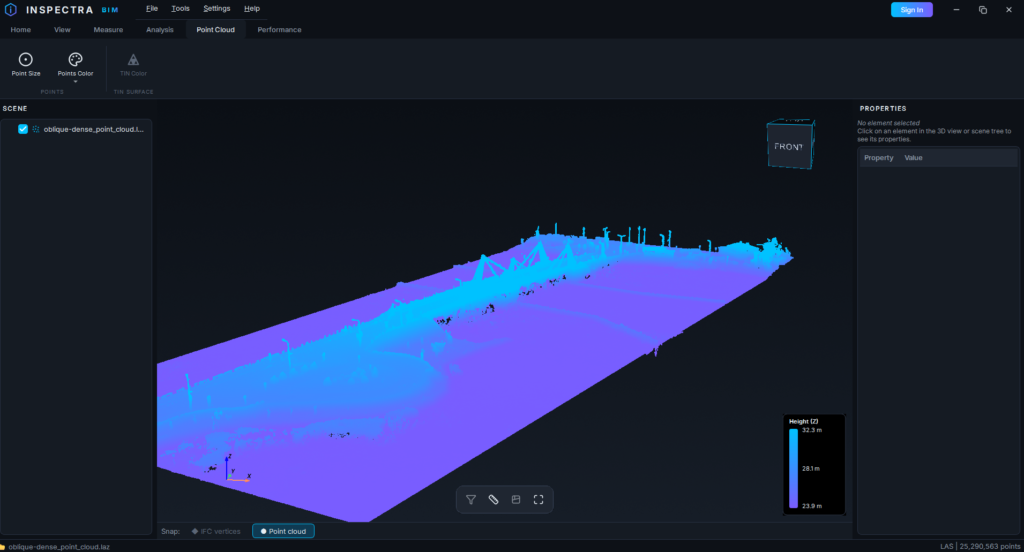
Point clouds now have a new elevation-based colour mode: instead of a flat colour, each point is shaded by its Z coordinate, mapped across a gradient from the lowest to the highest point in the cloud.
It’s a small change that makes a cloud instantly readable. Vertical structure jumps out — storey levels, ramps and slopes, kerbs and deck edges, terrain relief. A level floor reads as a single uniform band; a slope, a step, or settlement shows up as a clean shift in colour. It’s especially useful when a scan arrives with no colour information — typical for many SLAM and TLS exports — turning a flat, monochrome mass into a legible, information-rich view with no extra work. Exactly what you want when the thing you care about is relative height.
Attributes Audit — wildcards and exception tolerance
The attribute audit module gained two big features.
Wildcards in names. In both the property set name and the property name you can now use * (any sequence of characters) and ? (a single character). For example, the condition *_ElementType checks whether an element has any property whose name ends in _ElementType — regardless of the prefix that different tools happen to assign. No more typing out every naming variant by hand.
Exception tolerance, with a justification. In practice, 100% of elements rarely meet a requirement — sometimes you knowingly accept a handful of exceptions. Now you can record that: switch on Allow exceptions, set the number of non-compliant elements you’re willing to tolerate, and enter a justification. A model whose shortfall stays within the limit is marked as passed in the report. Importantly, your justification travels into the report (the Audit conditions section in HTML and a header in Excel), so every exception is documented in front of the client. Per-element scoring and 3D colouring are unchanged; the tolerance applies only at the whole-model pass/fail level.
Conditions panel in the report. The HTML report gained a collapsible Audit conditions section that documents exactly what was checked: property sets, properties, the depth of the check (Exist / Boolean / Number / Text), an explanation of the wildcards, and the exception tolerance that was applied. Whoever receives the report knows straight away what the numbers mean.
Minor UX touches in the audit dialog
While we were at it, we polished the audit settings window itself: the Run Audit button is now disabled until you’ve added at least one file and one required property (a hint tells you what’s still missing), and a permanent note on wildcard syntax now sits below the requirements list.
Inspectra BIM 0.1.1 is available to download now. As always — a per-user installer, no administrator rights required. Let us know what else you’d like to see in future releases.
Try it on your own model
Inspectra BIM Free opens IFC, E57/LAS and XML locally — no plugins, no cloud.