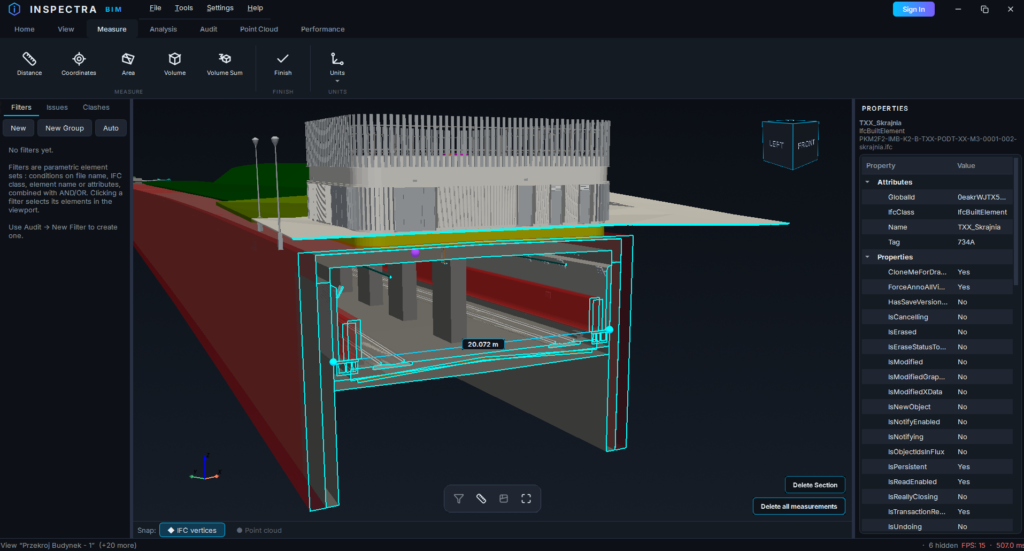
Inspectra BIM 0.6.0 — mierz wewnątrz przekroju i trzymaj modele w synchronizacji
Wersja 0.6.0 to wydanie o precyzji i przepływie pracy. Bez nowych kart, bez nowych przycisków do nauki — naprawia dwa miejsca, w których program zmuszał Cię do obchodzenia go dookoła, i przyspiesza zauważalnie dwie codzienne operacje.
Pomiar wewnątrz przekroju naprawdę teraz działa
Rozcięcie modelu i zmierzenie tego, co się odsłoniło, to jeden z najczęstszych ruchów w przeglądzie. Do tej pory stawiał opór: w pobliżu aktywnego przekroju przyciąganie po prostu zamierało, a kulka pomiaru potrafiła skoczyć gdzieś, gdzie wcale nie wskazywałeś.
Obie przyczyny zniknęły w 0.6.0, a zachowanie jest teraz lepsze niż przed pojawieniem się przekrojów:
- Krawędzie cięcia mają pierwszeństwo. Przy aktywnym przekroju kontur wytworzony przez samo cięcie jest highest-priority celem przyciągania — najpierw punkty, w których cięcie przecina rzeczywiste krawędzie modelu, potem dowolne miejsce wzdłuż linii cięcia, a dopiero potem zwykłe narożniki, krawędzie i powierzchnie. Zmierzenie otworu kanału, grubości ściany albo krawędzi płyty na powierzchni cięcia to teraz jedno pewne kliknięcie.
- Ukryta geometria nie może już wygrać. Przekrój ukrywa geometrię tylko na ekranie; dane modelu za nim wciąż tam są, a stare przyciąganie ochoczo zatrzaskiwało się na narożnikach po niewidocznej stronie. Kandydaci są teraz filtrowani do widocznej połowy modelu — wraz z ramkami przekroju, gdzie obowiązuje wszystkie sześć płaszczyzn.
- Koniec z niespodziewanymi skokami. Linia cięcia oddalona o kilka metrów potrafiła porwać przyciąganie, bo tolerancja pickera skaluje się z rozmiarem sceny, a nie z pikselami. Jeśli rozważana linia nie znajduje się blisko Twojego kursora, program pobiera teraz pick ponownie i oddaje głos geometrii za otworem.
Przeciągaj płaszczyznę przekroju w trakcie pomiaru, a przyciąganie natychmiast podąża za świeżym konturem.
Check for Updates obejmuje teraz sceny osadzone
In 0.5.0, Check for Updates (karta Home) przeładowywał pliki IFC, które zostały wyeksportowane ponownie. Sceny zapisane jako standalone — geometria osadzona w .ins, co właśnie sprawia, że otwierają się szybko — były poza zakresem: nie miały żywych plików do porównania.
Teraz są objęte. Inspectra pamięta plik źródłowy, z którego zbudowano każdy osadzony model, razem z jego stanem w tamtej chwili. Gdy uruchomisz Check for Updates, zgłosi każdy osadzony model, którego źródłowy IFC został od tego czasu przebudowany — w tym źródło, które zmieniło się, zanim w ogóle otworzyłeś scenę — i proponuje podmianę. Potwierdzenie porzuca osadzoną kopię i wczytuje w jej miejsce świeży IFC, pod tą samą nazwą modelu, więc widoki, zgłoszenia i wyniki kolizji nadal na niego wskazują.
Zachowujesz obie rzeczy naraz: sceny otwierające się w sekundy i możliwość wciągnięcia nowego eksportu bez budowania sceny od zera. Gdy model zostanie już podmieniony, jego testy kolizji (w tym te Rerun clash check w zgłoszeniu) działają na świeżej geometrii.
Zapis po zmianie modelu jest znacznie szybszy
Podmiana albo usunięcie modelu wymuszało wcześniej pełne przepisanie pliku sceny: każdy inny model był rozpakowywany i ponownie kompresowany, choć nic się w nim nie zmieniło.
0.6.0 przepisuje tylko to, co się zmieniło. Niezmienione modele są kopiowane wprost, bajt w bajt — bez żadnego ponownego przetwarzania geometrii — a przebudowywany jest wyłącznie model nowy albo podmieniony. Usunięte modele wreszcie zwalniają swoje miejsce, zamiast zalegać jako martwy balast, więc .ins pliki przestają rosnąć z każdą rundą koordynacji. Na testowej scenie z sześcioma modelami zapis po podmianie jednego modelu zajął poniżej jednej trzeciej sekundy, a plik zrobił się nieco smaller.
Cały zapis jest atomowy: scena jest zawsze albo kompletnym starym plikiem, albo kompletnym nowym, nigdy plikiem zapisanym w połowie — co ma znaczenie na współdzielonych dyskach sieciowych.
Przesuwanie jest płynne na ciężkich modelach
Orbitowanie dużego modelu federowanego było już płynne; przesuwanie nie. Zacinało się i skakało, ponieważ ścieżka przesuwania renderowała przy każdym pojedynczym zdarzeniu myszy, a potem stosowała jednym wielkim skokiem cały ruch, który zdążył się w międzyczasie nazbierać.
Przesuwanie korzysta teraz z tej samej techniki co orbitowanie: jeden krok kamery i jedna klatka na zdarzenie myszy, zawsze podążając za Twoim faktycznym kursorem. Korzystają na tym zarówno przeciąganie prawym, jak i środkowym przyciskiem. Punkt, który chwyciłeś, zostaje pod kursorem dokładnie jak wcześniej — ruch jest identyczny, po prostu już nie szarpie.
Logowanie
Okno logowania odpowiada teraz na pytania, z którymi ludzie faktycznie przychodzą: Nie masz konta? Załóż je, Nie pamiętasz hasła? Zresetuj je, and Nie masz jeszcze licencji? Zobacz plany — każdy prowadzi prosto na właściwą stronę, a nie na ogólny ekran konta. Przyciski uporządkowano, by do tego pasowały.
O Inspectra Audit
Audit — detekcja kolizji, koordynacja i raportowanie — zakończył testy i jest przed premierą. Jest dostarczany wewnątrz aplikacji, dlatego widzisz kartę Audit i jej narzędzia, ale pozostają zablokowane i nie można ich jeszcze używać. Sklep otworzy się za jakiś czas; premiera przyjdzie z wersją 1.0.0, a każda funkcja Audit dostanie tu wcześniej własne szczegółowe omówienie.
Aby dostać znak w chwili uruchomienia, załóż darmowe konto na inspectrabim.com/account i włącz powiadomienia o produkcie w swoim panelu.
Do pobrania
Pobierz Inspectra BIM 0.6.0 ze strony inspectrabim.com/download — darmowa przeglądarka nie wymaga konta. Aktualizacja na istniejącej instalacji zachowuje Twoje ustawienia i licencję.
Wypróbuj na własnym modelu
Inspectra BIM Free otwiera IFC, E57/LAS i XML lokalnie — bez wtyczek, bez chmury.